Choose a direction
Right-click a supported video and select rotate left or right.

Free for Windows 11
ClipTurn turns the picture inside the file—not just an orientation flag—then verifies the result before it replaces the source.
No account No codec questions No video uploads
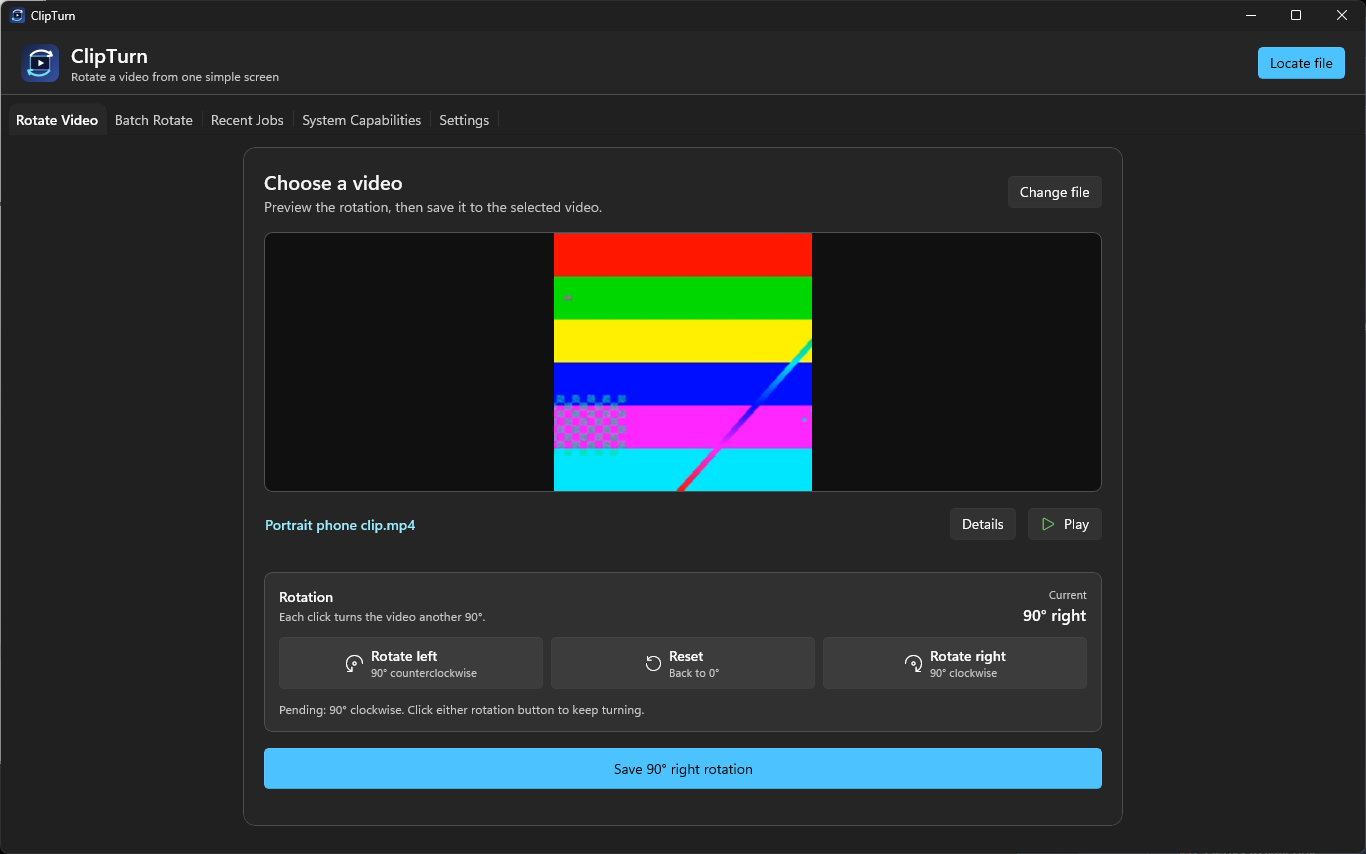
Built into your workflow
ClipTurn adds clear left and right rotation commands to File Explorer. There is no export dialog to decode and no new filename to manage.
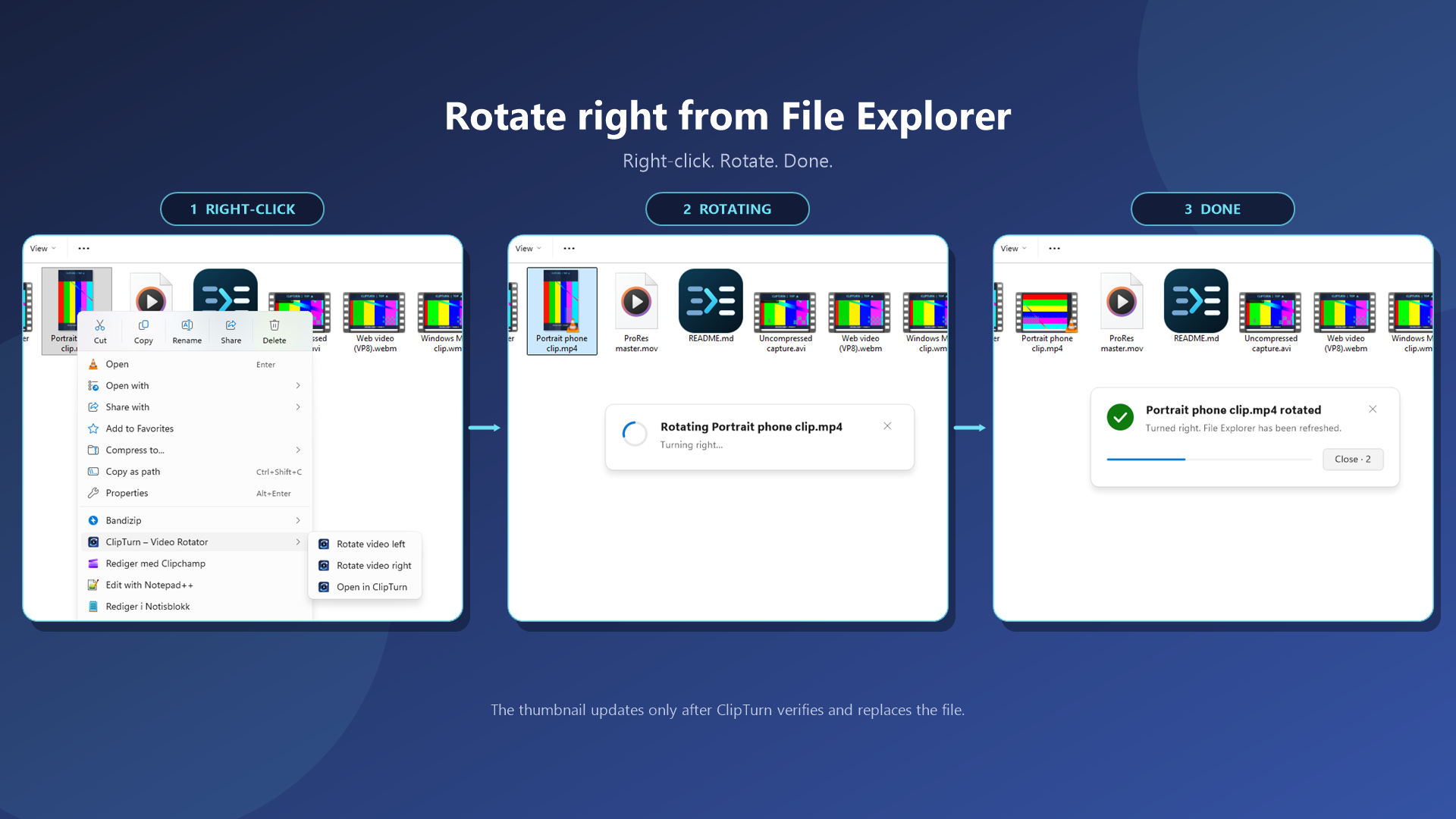
Right-click a supported video and select rotate left or right.
The app chooses a compatible processing path for that exact file.
The source is replaced only after the candidate passes its checks.
A small app with strong opinions
Some tools only change a display hint and hope every player, editor, and website reads it. ClipTurn physically rotates the stored image so the result travels with the file.
The video picture is physically rotated left or right. The result is not dependent on another app honoring an orientation flag.
No codec lists, bitrate guesses, quality sliders, or output-format questions. ClipTurn evaluates the file and chooses the safe path it can prove.
When supported, ClipTurn keeps the source codec, audio, metadata, subtitles, extra soundtracks, colour information, and HDR.
If a faithful candidate cannot be produced and independently verified, ClipTurn explains why and leaves the source unchanged.
A 27-second look
Rotate from File Explorer, preview in the app, or queue several videos at once.
One file or a whole folder
Add multiple videos, choose the turn, and let every file finish with its own result. A refusal for one video does not hide what happened to the others.
Show your work
ClipTurn records local verification details for the exact file it checked—including file identity, picture geometry, stream preservation, and the result of the physical rotation.
Clear limits, before surprises
ClipTurn is designed to protect the file, not oversell the result. These are the important boundaries to know before you rotate.
The default aims for a visually lossless result in the source codec when a compatible encoder exists. Repeated rotations can accumulate loss.
Only supported uncompressed packed-pixel AVI can be rotated sample-exactly, without a decoder or encoder.
There is no persistent Explorer backup and no undo after success. In-app backup is optional and off by default.
VP9, HEVC, Media Feature Pack, hardware, and driver availability can determine what a particular PC can rotate.
The practical questions
Yes. ClipTurn is a free Windows 11 desktop app distributed through the Microsoft Store.
No. ClipTurn is a Windows desktop app. Install it from the Microsoft Store, then use it from File Explorer or open the app directly.
No. Supported uncompressed AVI can be rotated sample-exactly. Compressed video is physically rotated through a visually lossless re-encode under the default policy, so repeated turns can accumulate loss.
A successful rotation replaces the selected file in place. File Explorer rotations keep no persistent backup and cannot be undone. When rotating inside the app, an optional backup setting is available and is off by default. If ClipTurn refuses or fails before a safe commit, the source remains unchanged.
Not necessarily. ClipTurn does not lower quality merely to force the output back to the source byte size, so a faithful result can be somewhat larger.
The container name is only one part of the file. Codec, bit depth, track layout, metadata, installed Windows codecs, and hardware can all affect whether ClipTurn can produce and prove a faithful result. When it cannot, it gives a specific reason instead of taking a risky guess.
Turn it from File Explorer or open ClipTurn for a preview and batch controls.